3. Physical check-in
1. What this process is for
This process closes the cycle the return left open. The front desk collects from the counter the device somebody declared they had returned, checks the asset tag and confirms receiving it in the admin panel.
When it ends, the loan is closed and the device goes back on the shelf — it starts being offered on the tablet again. This is the only step that does that.
2. Before you start
- You are signed in to the admin panel. If you are not, sign in with your login and password — see Administrator account.
- Somebody declared the return on the tablet. Without that there is no row in the queue: what puts a loan there is process 2.
- The device is in your hand, collected from the counter. This is the precondition the whole process exists to guarantee — see the rule below.
- The asset tag stuck on the device is readable.
3. Terms used on this page
Terms that cross several processes live in the general glossary: physical check-in, return queue, asset tag, loan, shelf time and maintenance.
These three belong to this page only — they are the parts of the screen that the steps name:
| Term | What it is |
|---|---|
| Fila de Devoluções (Return queue) | The first screen of the admin panel: one row per device somebody declared returned and that has not been checked yet. |
| Confirmar Recebimento Físico (Confirm physical receipt) | The button on each row. It closes that loan and puts that device back on the shelf. |
| Confirmar Todas as Devoluções (Confirm all returns) | The shortcut at the top of the list, which confirms the whole counter. It only appears from two items upwards. |
4. Who does what
| Role | Does | Does not |
|---|---|---|
| Front desk | Collects the device from the counter, checks the asset tag against the row and confirms receiving it in the admin panel. | Does not return anything on the tablet. The declaration belongs to whoever took the device. |
| Admin panel (the computer) | Lists what is waiting to be checked, closes the loan, stamps the check-in time and puts the device back in stock. | Checks nothing on its own. It records that you checked; the person looking at the asset tag is you. |
| Student or teacher | Left the device on the counter and declared the return on the tablet. | Takes no part in this process. For whoever returned it, the device left their list at the declaration. |
5. BPMN diagram
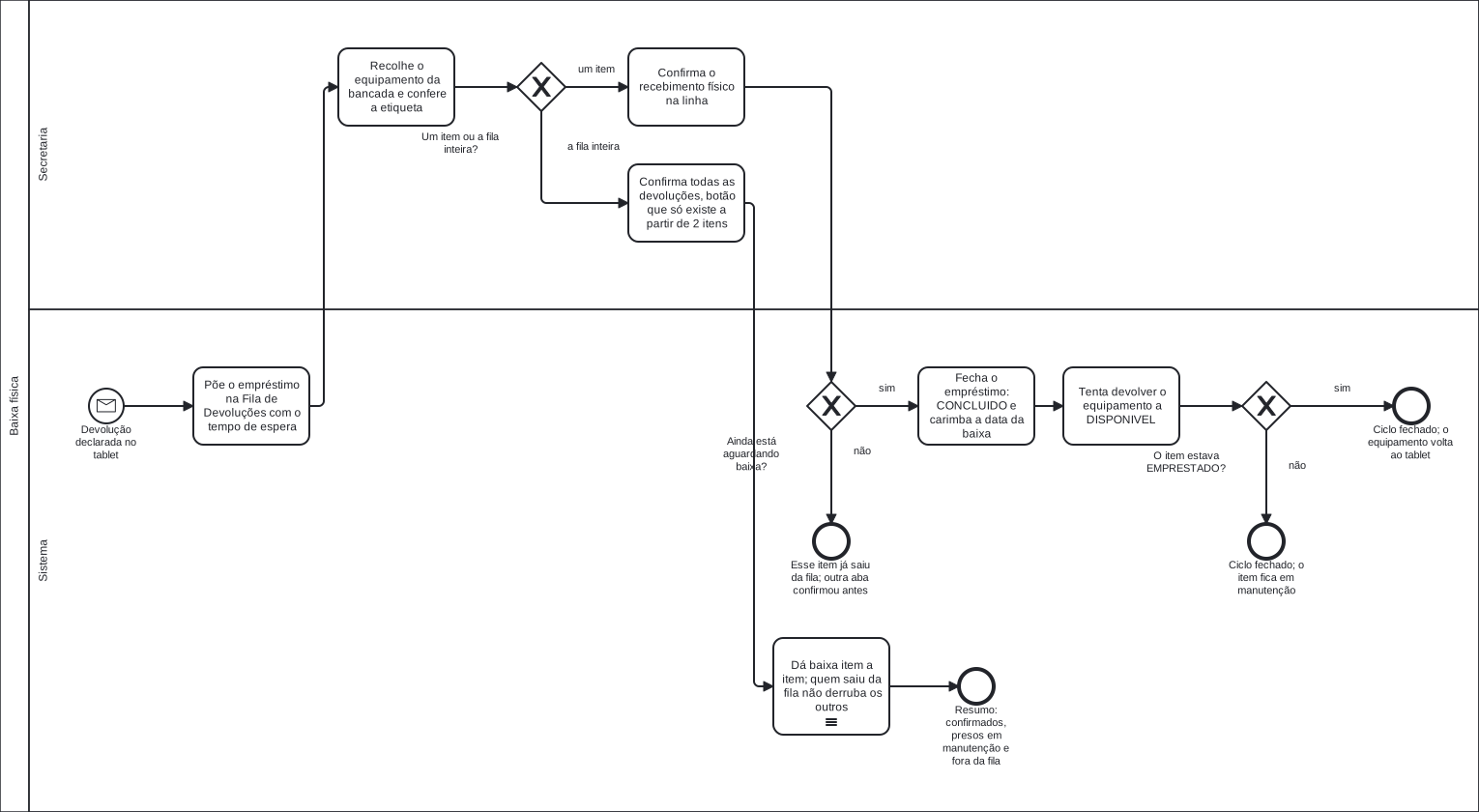
Click the diagram to open it at full size — at the width of this page it fits at a little over a third of its size, and the labels cannot be read.
Notice how the diagram starts: the start event is not "the front desk opens the panel", it is Devolução declarada no tablet (Return declared on the tablet) — the message process 2 emits when somebody confirms a return. The two diagrams meet at that point, and that is why the queue can be full without anybody having opened the admin panel.
The diagram labels are in Portuguese, because it is the same file the Portuguese pages use.
The diagram labels, in English
| Label on the diagram | In English |
|---|---|
| Secretaria | Front desk (the lane) |
| Sistema | System (the lane) |
| Devolução declarada no tablet | Return declared on the tablet |
| Põe o empréstimo na Fila de Devoluções com o tempo de espera | Puts the loan in the return queue with the waiting time |
| Recolhe o equipamento da bancada e confere a etiqueta | Collects the device from the counter and checks the asset tag |
| Um item ou a fila inteira? | One item or the whole queue? |
| Confirma o recebimento físico na linha | Confirms the physical receipt on the row |
| Confirma todas as devoluções, botão que só existe a partir de 2 itens | Confirms all returns, a button that only exists from 2 items upwards |
| Ainda está aguardando baixa? | Is it still awaiting check-in? |
| Esse item já saiu da fila; outra aba confirmou antes | That item has already left the queue; another tab confirmed first |
| Fecha o empréstimo: CONCLUIDO e carimba a data da baixa | Closes the loan: CONCLUIDO (completed) and stamps the check-in date |
| Tenta devolver o equipamento a DISPONIVEL | Tries to put the device back to DISPONIVEL (available) |
| O item estava EMPRESTADO? | Was the item EMPRESTADO (on loan)? |
| Ciclo fechado; o item fica em manutenção | Cycle closed; the item stays under maintenance |
| Ciclo fechado; o equipamento volta ao tablet | Cycle closed; the device goes back to the tablet |
| Dá baixa item a item; quem saiu da fila não derruba os outros | Checks in item by item; a row that left the queue does not bring the others down |
| Resumo: confirmados, presos em manutenção e fora da fila | Summary: confirmed, stuck under maintenance and out of the queue |
| sim / não | yes / no |
| um item / a fila inteira | one item / the whole queue |
Download the .bpmn file — the
source of the diagram, which opens in bpmn.io with nothing to
install.
6. Step by step
-
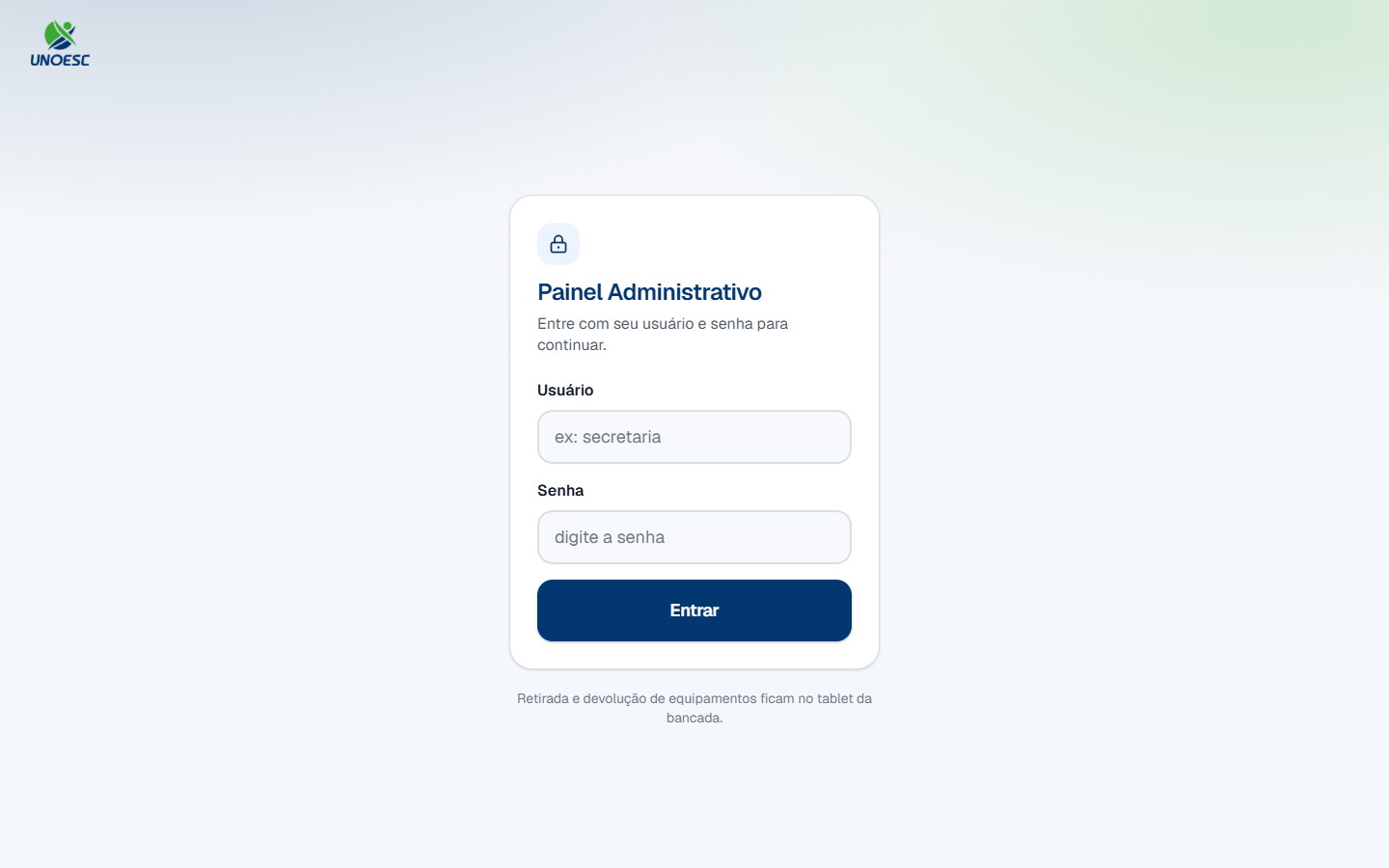
Open the admin panel on the front desk computer.
-
Type your login in the Usuário (Username) field and your password in the Senha (Password) field.
-
Click Entrar (Sign in).
The panel opens straight into Fila de Devoluções (Return queue) — it is the first screen because it is the only one with a deadline.
-
Check how many devices are waiting.
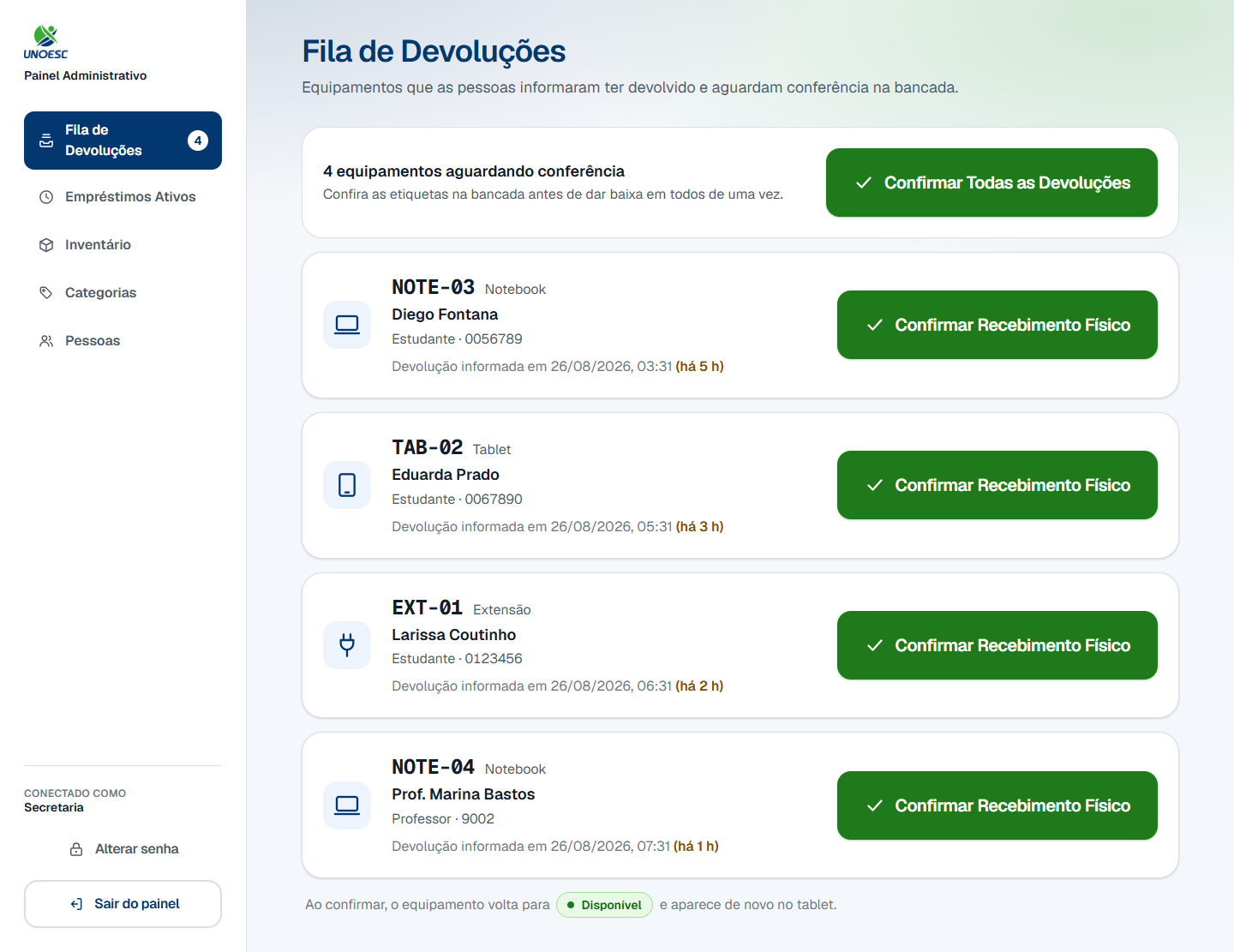
The number next to Fila de Devoluções (Return queue), in the menu on the left, is the same total. It follows the list: it disappears when the queue empties.
-
Read the row for the device you are holding.

Each row carries the asset tag in large type, the category, who returned it, the enrollment number, and the caption Devolução informada em (Return declared at), with the elapsed time in parentheses — "(há 5 h)" (5 h ago). That time is what makes the queue worth working from the top down: the larger it is, the longer the device has been sitting on the counter unable to be lent to anybody.
-
Pick the device up from the counter.
This step has no click, and it is the only one in the whole system that happens off screen. It is numbered because it is the step that gives all the others their meaning: what you confirm on screen is that it has already happened.
-
Check the asset tag stuck on the device against the asset tag in the row, character by character.
The asset tag is set in a monospaced font on purpose, so it matches the sticker with no doubt between similar characters.
-
Are the two asset tags the same?
- If YES → go to step 9.
- If NO → do not confirm this row. Look for the row of the asset tag you are holding. If it is not in the queue, the device has not been returned on the tablet yet — see the question about confirming the wrong item.
-
Are you confirming one device or the whole counter?
- If ONE → click Confirmar Recebimento Físico (Confirm physical receipt) on the row for that device. Go to step 10.
- If ALL → click Confirmar Todas as Devoluções (Confirm all returns), at the top of the list. Check first that every device on the list is in your hands: the button confirms the whole list at once. Go to step 10.

-
Look at the green notice at the top of the screen.
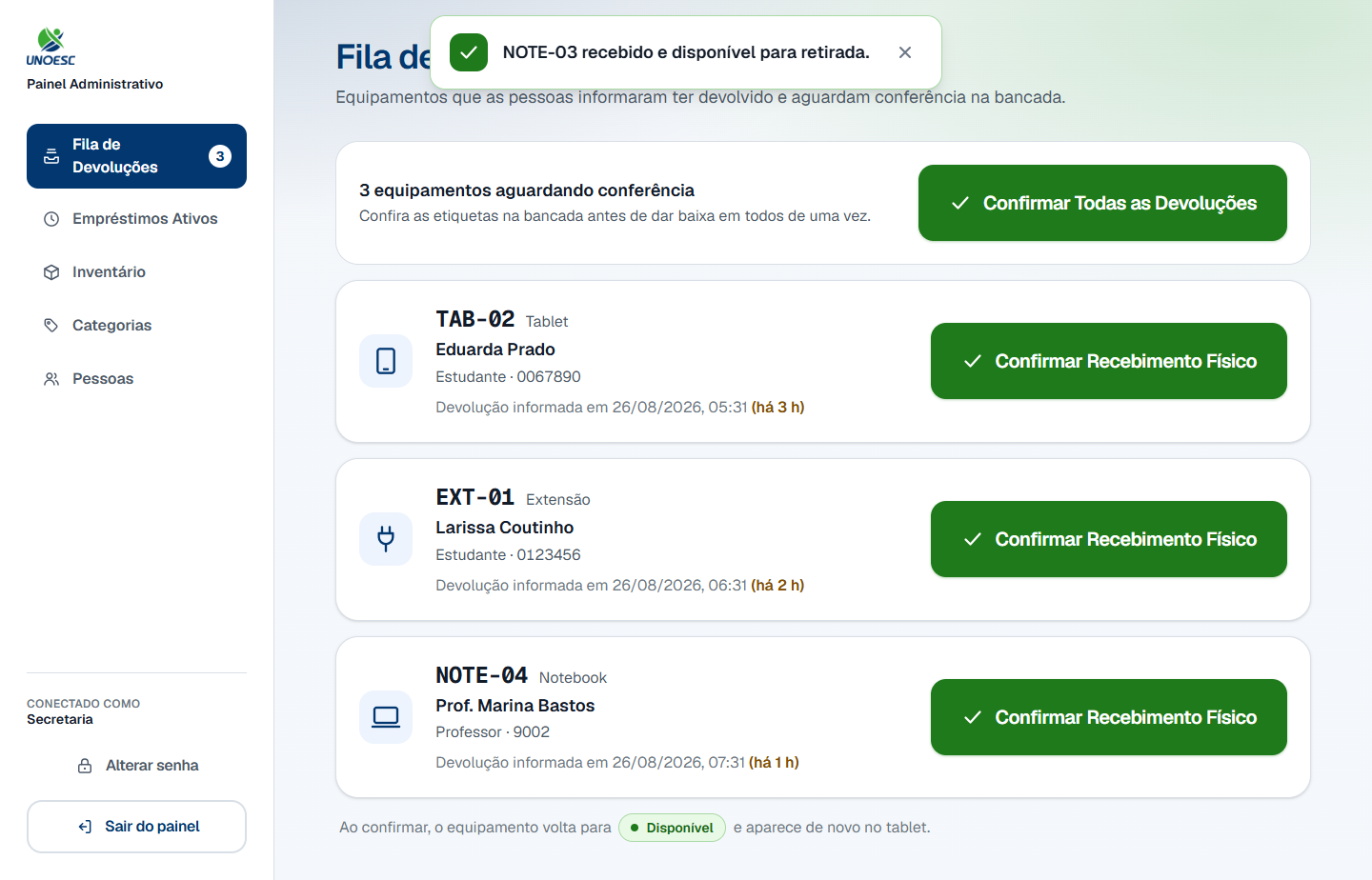
It gives the asset tag and what happened to the device — "NOTE-03 recebido e disponível para retirada." (NOTE-03 received and available for pickup.) The row disappears from the list and the menu counter drops.
In a batch, the notice counts the total: "3 equipamentos recebidos." (3 devices received.) If some row could not be confirmed, it says so in the same sentence instead of hiding it — see the question about the batch.
-
Put the device away on the shelf.
From the green notice onwards it is already offered on the tablet. A device that is recorded as available and is still on the counter is exactly the problem this process exists to prevent, only the other way round.
-
Repeat from step 5 while there are rows in the queue.
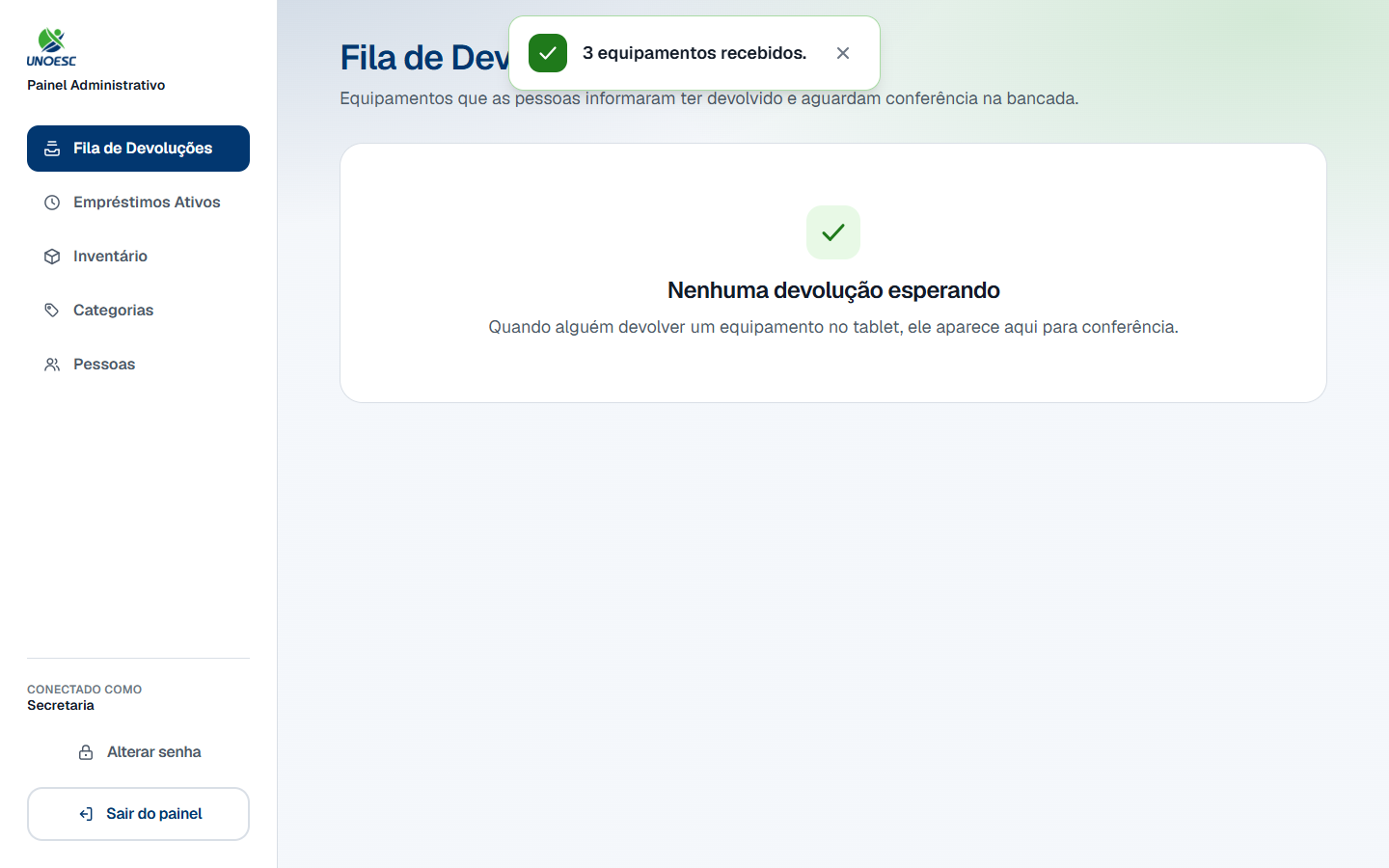
With the counter clear, the screen says Nenhuma devolução esperando (No returns waiting). The notice from the last confirmation stays visible for a few seconds — it does not disappear along with the list.
7. Rules that are not obvious
Why is this confirmation the only thing that puts the device back on the shelf?
Because returning on the tablet is a declaration, and checking at the counter is a verification. Only the second one has somebody looking at the device.
Between the two, the device still counts as out: it does not appear on the tablet, it does not enter the available count and nobody else can pick it up. That is deliberate. If it went back on the shelf at the declaration, the tablet would offer somebody else a device that is still on the counter — and they would look for it and not find it.
This is easy to measure: with four rows in the queue, the tablet was showing "Notebooks — 4 de 9 disponíveis" (4 of 9 available). After confirming the receipt of one laptop, and only then, the same screen started showing 5 de 9 (5 of 9).
The screen says as much at the bottom of the queue, in these words:
Ao confirmar, o equipamento volta para Disponível e aparece de novo no tablet.
(On confirming, the device goes back to Disponível (Available) and appears on the tablet again.)
What exactly gets recorded when I confirm?
Three times, and each one has a single owner:
| When | Who records it |
|---|---|
| The device left with the person | The tablet, at the pickup |
| The person declared they had returned it | The tablet, at the return |
| You checked the device at the counter | The panel, at this check-in |
Confirming does not erase or correct the first two. The time that stands as the return is the person's tap on the tablet, not your click — even if you confirm two days later.
The distance between the last two is the shelf time: how long the device sat on the counter, already handed over and still invisible to anybody who wanted to pick something up. It is the measure of the bottleneck in this operation, and it only exists because the two times are kept apart.
The field names, for whoever works on the database
The three times are Emprestimo.data_retirada,
Emprestimo.data_devolucao and Emprestimo.data_baixa. The shelf time
is data_baixa - data_devolucao.
Until the previous version, the check-in overwrote data_devolucao
with its own instant. The two events shared a single field, and the
subtraction above gave zero forever. Whoever reintroduces that update
in darBaixa makes the metric lie again with no error appearing at
all: the field exists, the value is written, and the report carries
plausible numbers.
Loans completed before that fix were left with a blank check-in date, on purpose — an invented zero would enter any future average as though it had been measured.
I clicked twice. Did I check it in twice?
No. A second confirmation of the same device has no effect at all: the loan has already left the queue, and the system refuses instead of recording it again. The time on record is still that of the first click.
So click without worrying if you are unsure whether the first click landed. The sign that it did is the green notice with the asset tag and the row disappearing from the list.
If the device left the queue by another route — a colleague confirmed it on another computer — the row shows "Esse item já saiu da fila." (That item has already left the queue.) for an instant and disappears. The list is re-read straight away: what is left in it is what still needs checking.
I confirmed receiving a device that was not on the counter. How do I undo it?
There is no way to undo it from the admin panel. Confirming closes the loan and puts the device back on the shelf, and there is no button that reopens a closed loan.
What fixes it, in order:
- Find the device. Somebody has it, and the record now says nobody does.
- Ask that person to pick it up again on the tablet, with their own enrollment number. That puts the device back in the name of whoever has it, and it is what makes the shelf tell the truth again.
- If the device is broken or missing, mark it as Manutenção (Maintenance) from the inventory so it stops being offered on the tablet while the situation is unresolved.
A loan closed by mistake stays closed in the history. That is why step 7 exists: checking the asset tag is cheaper than any of those three steps.
Can I confirm everything at once without checking device by device?
You can click, but the button checks nothing for you — it records that you checked. Confirmar Todas as Devoluções (Confirm all returns) only exists from two items upwards, and the bar itself is a reminder: "Confira as etiquetas na bancada antes de dar baixa em todos de uma vez." (Check the asset tags on the counter before checking them all in at once.)
The batch is best effort, item by item: if a row has already left the queue in the meantime, the others still stand. That is deliberate — the physical gesture has already happened, and a row confirmed on another computer cannot undo the checking of the rest. The notice counts everything that happened: how many were confirmed and how many were left behind.
Somebody returned something and the name is not in the queue. Why?
The queue shows only what was declared on the tablet. A device left on the counter with nobody touching the tablet produces no row at all — to the system, it is still on loan.
Check Empréstimos Ativos (Active loans), in the menu: if the device is there, the return was not declared. The only person who can declare it is the one who picked it up, on the tablet, with their own enrollment number.
Where this process starts
Not here. The row you have just checked entered the queue when somebody tapped Confirmar devolução (Confirm return) on the tablet at the counter.
That is Process 2 — Equipment return, on the portal track.
8. Common errors and what to do
When a confirmation is refused, the message appears inside the row, just below the button — and the row stays in the queue. That is the sign that nothing was checked: the device is still waiting.
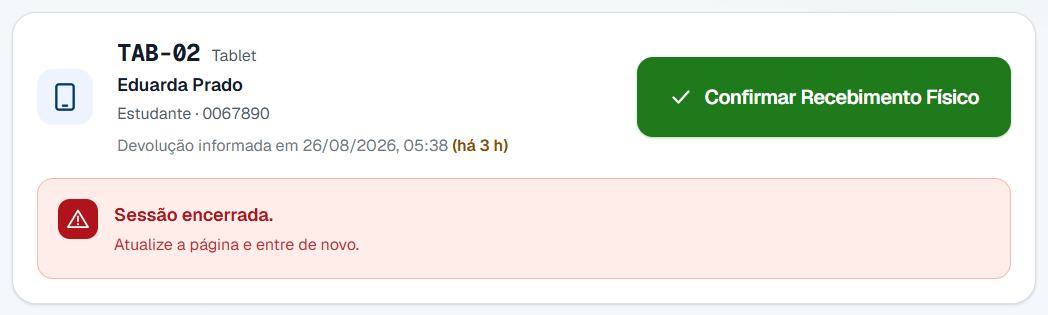
The exception is "Esse item já saiu da fila." (That item has already left the queue.): there the message appears for an instant and the row disappears, because the list is re-read straight away. It disappears because that device has already been checked — by you, on the previous click, or by another computer.
| Message on screen | Cause | What to do |
|---|---|---|
| "Usuário ou senha inválidos." (Invalid username or password.) | Wrong login or wrong password. The message is the same in both cases, on purpose. | Type them again. The initial password of every account is changed in the first week — see Administrator account. |
| "Muitas tentativas seguidas." (Too many attempts in a row.) | Five wrong passwords in a row on the same login. | Wait for the time the message gives. In that interval not even the right password gets through. |
| "Nenhum administrador cadastrado." (No administrator registered.) | The system was installed and the panel accounts have not been created yet. | This is installation, not a wrong password. Whoever looks after the server solves it, with the command the message itself gives. |
| "Sessão encerrada." (Session ended.) | The session dropped while the screen was open — the server restarted, or this account's password was changed. | Refresh the page and sign in again. Nothing was checked: the row is still in the queue. |
| "Esse item já saiu da fila." (That item has already left the queue.) | Another computer confirmed receiving this device first, or the click was repeated. | No action. The list re-reads itself; what is left in it is what still needs checking. |
| "Nada para confirmar." (Nothing to confirm.) | Confirmar Todas as Devoluções (Confirm all returns) was clicked after the queue had already emptied on another computer. | Refresh the page. If the queue comes up empty, the counter has been checked. |
| "Nenhuma baixa foi registrada." (No check-in was recorded.) | None of the rows in the batch could be confirmed. | Refresh the page and check what is left in the queue. If the list is still full, tell whoever looks after the server. |
| "São no máximo 50 baixas por vez." (50 check-ins at a time at most.) | The queue went over 50 rows. | Click Confirmar Todas as Devoluções (Confirm all returns) again: the list refreshes between rounds and shrinks with each click. |
| "Não foi possível concluir a operação." (Could not complete the operation.) | The panel could not reach the database. | Try again. If it persists, tell whoever looks after the server — and do not put the devices away on the shelf until the queue empties. |