4. Inventory management
1. What this process is for
This process keeps the equipment list matching the cabinet: what arrives goes in, what breaks leaves circulation, what has reached the end of its life is retired, and a sticker that fell off is corrected.
When it ends, the tablet portal offers exactly what exists and is fit to leave. Everything the front desk does here changes what the next person sees on the category grid.
2. Before you start
- You are signed in to the admin panel. If you are not, sign in with your login and password — see Administrator account.
- The device is in front of you, to register it, to change its sticker or to set it aside for repair. This screen records decisions about physical things.
- There is at least one category registered. Without a category there is no way to register equipment — the form says so and stays disabled.
- To change the asset tag or the status, the item must not be in an open loan. See the rule about the locked status.
3. Terms used on this page
Terms that cross several processes live in the general glossary: asset tag, category, maintenance, retirement and loan.
These belong to this page only — they are the parts of the screen that the steps name:
| Term | What it is |
|---|---|
| Inventário (Inventory) | The panel tab with all registered equipment, one row per device, grouped by category. |
| Situação (Status) | The column that says where the device is in its life: Disponível (Available), Emprestado (On loan), Manutenção (Maintenance) or Inativo (Inactive). |
| Categorias (Categories) | The neighboring tab, where the shelves of the inventory are created and deleted. The tablet organizes its grid by them. |
| Equipamentos vinculados (Linked equipment) | The count that appears on the Categories screen instead of the delete button, when the category has any device. |
4. Who does what
| Role | Does | Does not |
|---|---|---|
| Front desk | Registers the device that arrived, corrects the asset tag, sets items aside for repair, retires what is no longer useful, and creates the categories. | Does not delete equipment — there is no such action, and the rule below explains why. |
| Admin panel (the computer) | Keeps the status of each item, refuses changes that would break the history, and hides from the tablet whatever has left circulation. | Decides nothing on its own. It does not know whether the device broke — the person looking at the device is you. |
| Student or teacher | Nothing. Takes no part in this process. | Does not see this screen. What they notice is indirect: a device disappearing from the category grid on the tablet. |
5. BPMN diagram
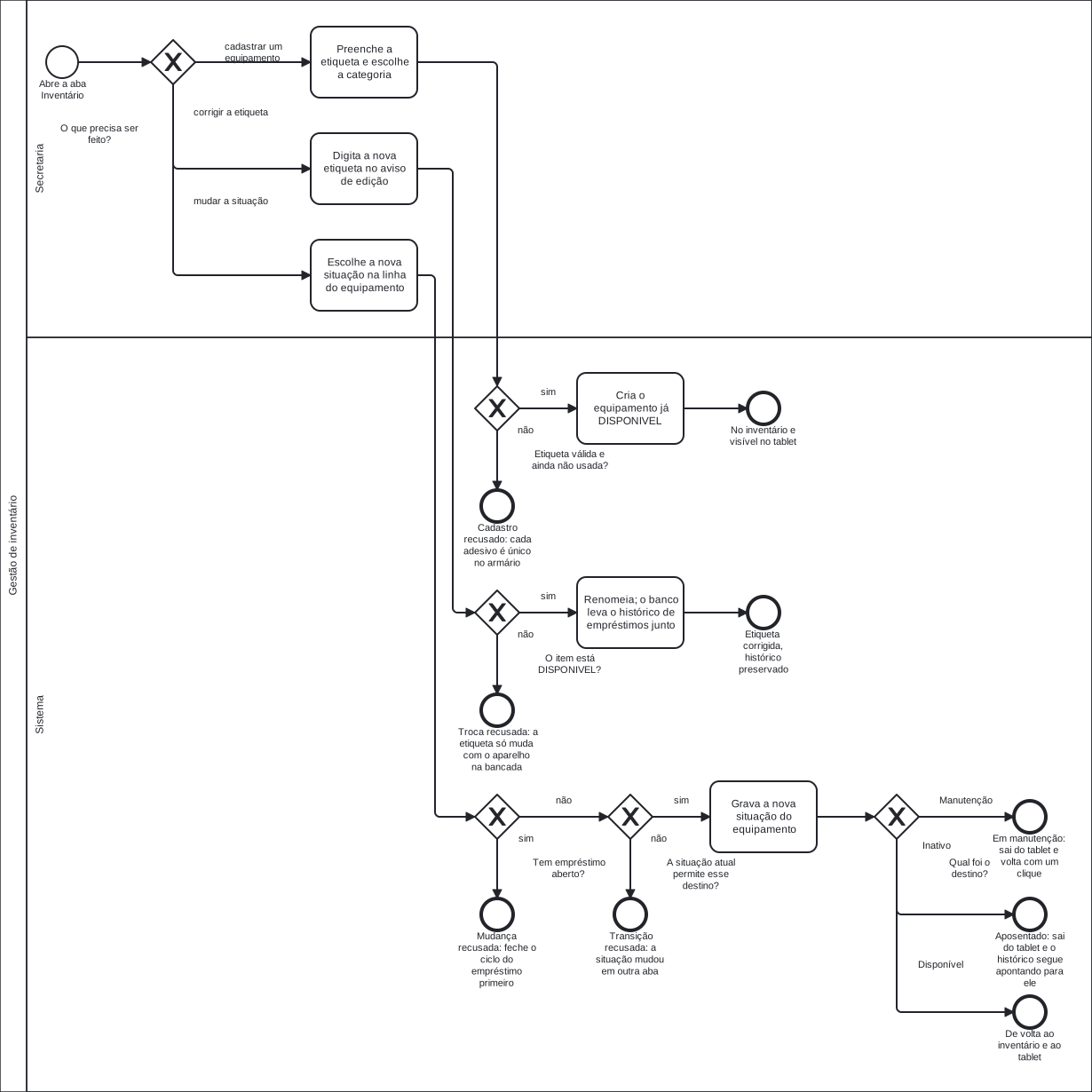
Click the diagram to open it at full size — at the width of this page it fits at a little over half its size, and the labels get cramped.
The diagram has three paths leaving the same question, and that is how the screen works: a single list, with the registration form on top and the actions on each device's row.
Category management is not in the diagram, on purpose. It is another screen (Categorias (Categories), in the menu) and it is not one of the five processes of the system — what the diagram shows is registration choosing a category that already exists. Procedure 5 in the step by step covers creating and deleting them.
The diagram labels are in Portuguese, because it is the same file the Portuguese pages use.
The diagram labels, in English
| Label on the diagram | In English |
|---|---|
| Secretaria | Front desk (the lane) |
| Sistema | System (the lane) |
| Abre a aba Inventário | Opens the Inventário (Inventory) tab |
| O que precisa ser feito? | What needs doing? |
| cadastrar um equipamento | register a device |
| corrigir a etiqueta | correct the asset tag |
| mudar a situação | change the status |
| Preenche a etiqueta e escolhe a categoria | Fills in the asset tag and chooses the category |
| Etiqueta válida e ainda não usada? | Asset tag valid and not used yet? |
| Cadastro recusado: cada adesivo é único no armário | Registration refused: each sticker is unique in the cabinet |
| Cria o equipamento já DISPONIVEL | Creates the device already DISPONIVEL (available) |
| No inventário e visível no tablet | In the inventory and visible on the tablet |
| Digita a nova etiqueta no aviso de edição | Types the new asset tag in the edit dialog |
| O item está DISPONIVEL? | Is the item DISPONIVEL (available)? |
| Troca recusada: a etiqueta só muda com o aparelho na bancada | Change refused: the asset tag only changes with the device on the counter |
| Renomeia; o banco leva o histórico de empréstimos junto | Renames it; the database takes the loan history along |
| Etiqueta corrigida, histórico preservado | Asset tag corrected, history preserved |
| Escolhe a nova situação na linha do equipamento | Chooses the new status on the device's row |
| Tem empréstimo aberto? | Is there an open loan? |
| Mudança recusada: feche o ciclo do empréstimo primeiro | Change refused: close the loan cycle first |
| A situação atual permite esse destino? | Does the current status allow that destination? |
| Transição recusada: a situação mudou em outra aba | Transition refused: the status changed in another tab |
| Grava a nova situação do equipamento | Writes the device's new status |
| Qual foi o destino? | Which destination was it? |
| Em manutenção: sai do tablet e volta com um clique | Under maintenance: leaves the tablet and comes back with one click |
| Aposentado: sai do tablet e o histórico segue apontando para ele | Retired: leaves the tablet and the history keeps pointing at it |
| De volta ao inventário e ao tablet | Back in the inventory and on the tablet |
| Manutenção / Inativo / Disponível | Maintenance / Inactive / Available |
| sim / não | yes / no |
Download the .bpmn file — the
source of the diagram, which opens in bpmn.io with nothing to
install.
6. Step by step
There are five procedures, each with its own sequence. They all start on the Inventário (Inventory) tab, in the menu on the left — except the last one, which is on the Categorias (Categories) tab.
The screen opens with the count per status at the top and the list below, grouped by category. That is where you check, at a glance, whether there is a device to spare today.
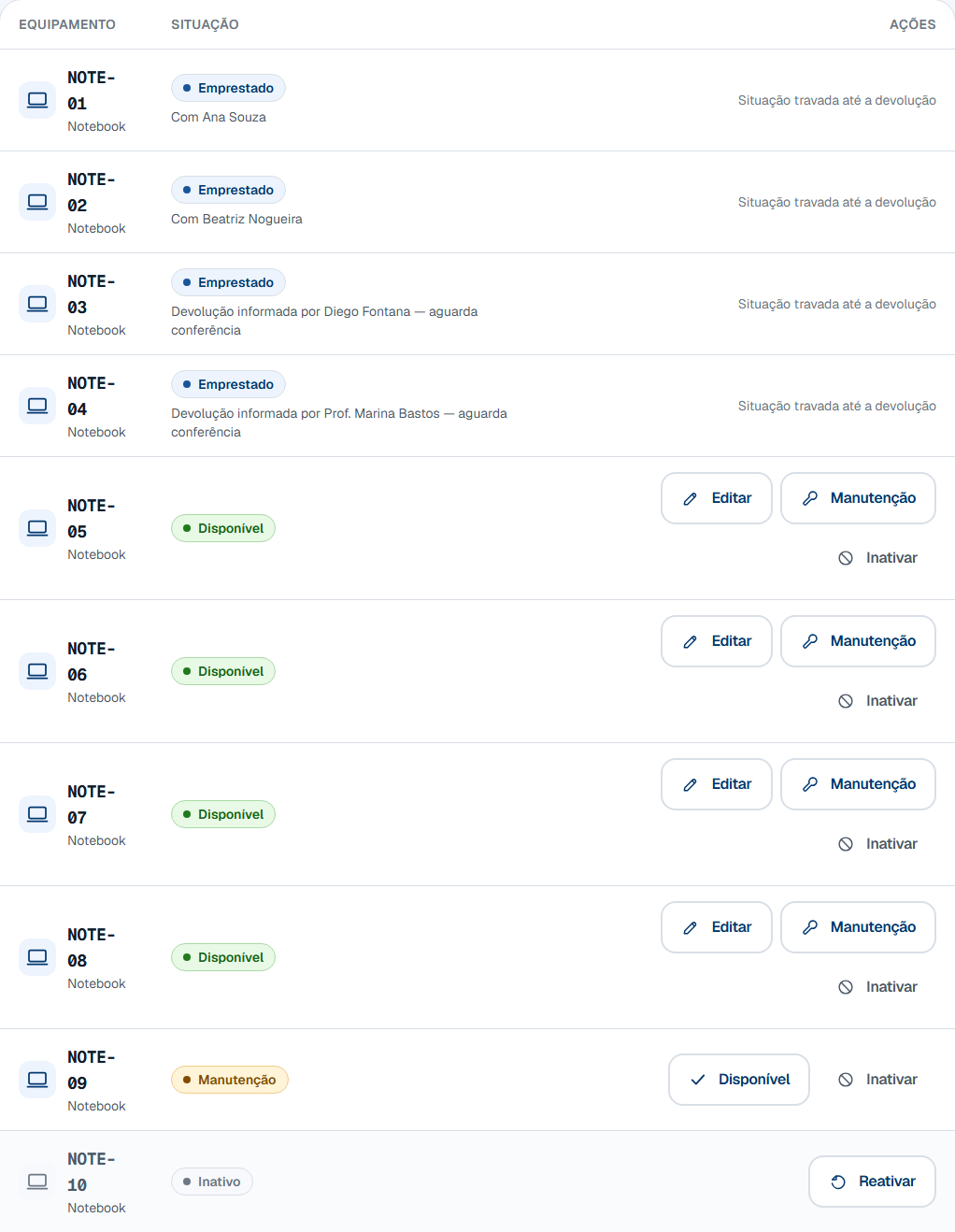
Notice that each status offers different buttons. That is not accidental: the row only shows what can be done with that device now, and the row of an item on loan has no button at all.
Registering a new device
-
Put the sticker on the device, if it does not have one yet.
-
Open the Inventário (Inventory) tab.
-
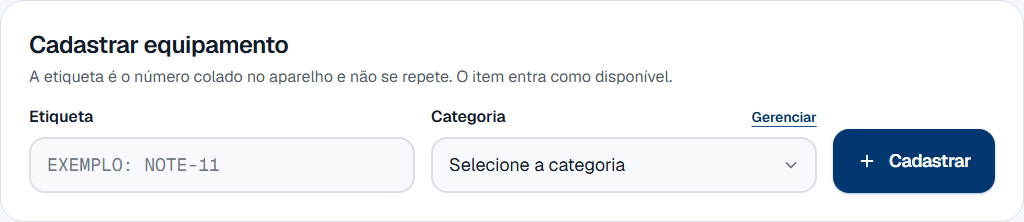
Type in the Etiqueta (Asset tag) field exactly what the sticker says.
You can type in lowercase: the system stores it in uppercase either way. What it does not accept is spaces and accents — see the rule about the asset tag format.
-
Choose the category of the device in the Categoria (Category) field.
The list comes from the Categorias (Categories) tab. If the right category is not there, the Gerenciar (Manage) link, next to the label, takes you straight to procedure 5.
-
Click Cadastrar (Register).
-
Look at the green notice below the form.
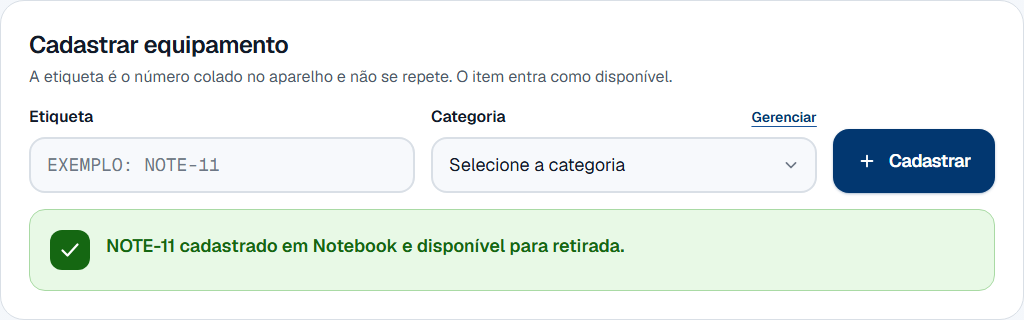
It gives the asset tag, the category and the status the item was born in — "NOTE-11 cadastrado em Notebook e disponível para retirada." (NOTE-11 registered in Notebook and available for pickup.) From then on the device is already offered on the tablet.
-
To register the next device, repeat from step 3.
The form clears itself completely after each registration, including the category — so it has to be chosen again for each item. That is deliberate: registering ten laptops and one tablet without noticing the field was still on "Notebook" would be worse. The cursor goes back to the asset tag on its own.
Sending a device for repair and bringing it back
-
Find the device in the list.
Use the search by asset tag or category if the list is long — it accepts "extensao" without the accent.
-
Check that its status is Disponível (Available).

-
Click Manutenção (Maintenance) on the row for that device.
-
Look at the notice at the top of the screen.

It says what happened to the device — "NOTE-05 foi para manutenção e saiu da lista do tablet." (NOTE-05 went for repair and left the tablet list.) The row badge turns amber and the Editar (Edit) button disappears.
-
Set the device aside for repair.
While it is like that, nobody can pick it up on the tablet, and it does not enter the available count of its category either.
-
When the repair is done, click Disponível (Available) on the same row.
-
Check the notice: "NOTE-05 está disponível para retirada." (NOTE-05 is available for pickup.)
The device goes back on the shelf and back to the tablet grid straight away.
Retiring an item and reactivating it
-
Find the device in the list.
-
Click Inativar (Deactivate).
The button is on Disponível (Available) and Manutenção (Maintenance) rows — a device can be retired straight from the repair bench, when the quote is not worth it.
-
Read the dialog before confirming.
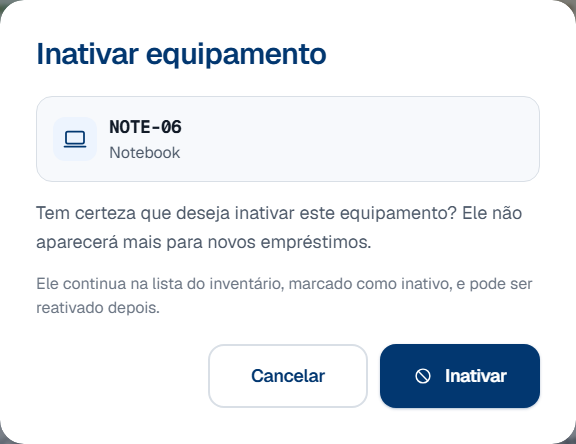
It confirms the asset tag — "this device" in the middle of a twenty-row table does not say which — and reminds you that the item stays on the list and can be reactivated later.
-
Click Inativar (Deactivate), in the dialog.
-
Check the notice: "NOTE-06 foi inativado e não será mais oferecido para empréstimo." (NOTE-06 has been deactivated and will no longer be offered for loan.)

The row stays on the list, dimmer than its neighbors, with the Inativo (Inactive) badge and a single button.
-
To bring the device back, click Reativar (Reactivate).
It comes back as Disponível (Available), and the notice says so in other words — "NOTE-06 voltou ao inventário e está disponível para retirada." (NOTE-06 is back in the inventory and available for pickup.) There is no dialog here: reactivating is not a dangerous gesture.
-
If what you want is to send it for repair, click Manutenção (Maintenance) afterwards.
That is two clicks, not one. See the rule about retired items.
Changing the asset tag of a device
-
Check that the status of the device is Disponível (Available).
The asset tag only changes with the device on the counter. While somebody has it, the code on screen has to keep matching what that person is going to return.
-
Click Editar (Edit) on the row for that device.
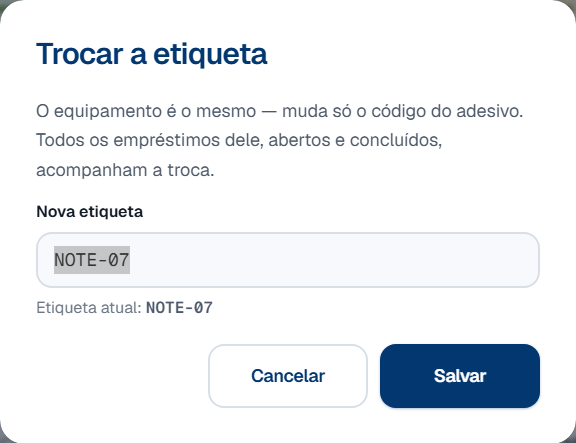
-
Type the code from the new sticker in the Nova etiqueta (New asset tag) field.
The field arrives with the current asset tag already selected: you can type over it. The dialog says what will happen to the history — "Todos os empréstimos dele, abertos e concluídos, acompanham a troca." (All its loans, open and completed, follow the change.)
-
Click Salvar (Save).
-
Check the notice: "NOTE-07 agora é NOTE-77. O histórico de empréstimos foi junto." (NOTE-07 is now NOTE-77. The loan history went with it.)
The second sentence is the point: the device is the same, and every loan of it — open or completed — now points at the new code. Nothing is left behind.
Creating and deleting a category
-
Open the Categorias (Categories) tab, in the menu.
-
Type the name in the Nome (Name) field, in the singular.
"Projetor", not "Projetores". The plural the tablet shows is worked out by the system, and the screen itself shows you which one it will be.
-
Click Cadastrar (Register).
-
Check the new row in the table.
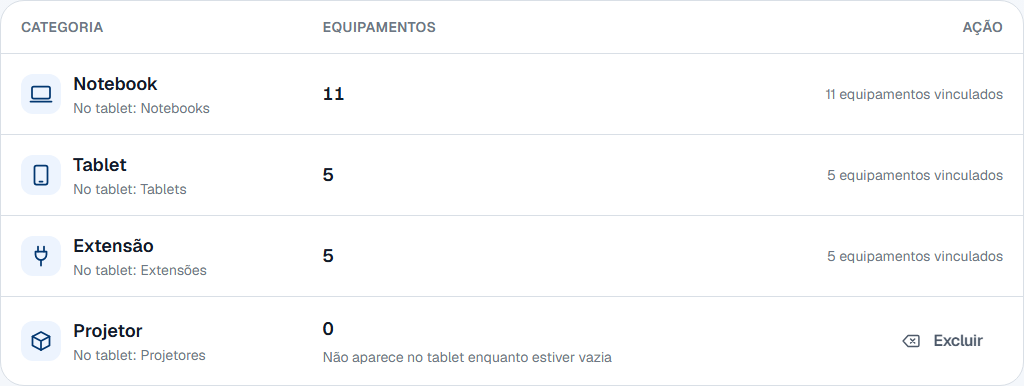
Below the name it shows the plural — "No tablet: Projetores" (On the tablet: Projetores). If it is wrong, the fix is the singular name, and now is the moment to notice.
-
Go back to the Inventário (Inventory) tab.
While the category has no device, its row warns you: "Não aparece no tablet enquanto estiver vazia" (Does not appear on the tablet while empty). It only enters the portal grid with its first piece of equipment.
-
Register the first device in it, using procedure 1.
-
Does the category have any linked equipment?
- If NO → the row has the Excluir (Delete) button. Go to step 8.
- If YES → instead of the button, the row shows the count, such as "11 equipamentos vinculados" (11 linked devices). There is no way to delete it — see the rule about a category in use.
-
Click Excluir (Delete).
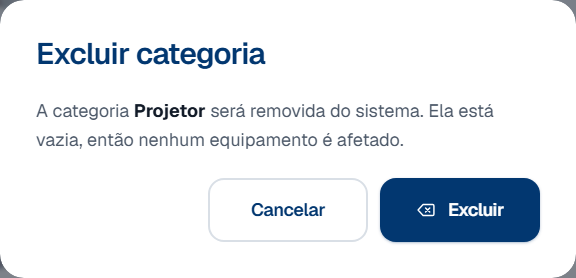
The dialog confirms that nothing is lost: "Ela está vazia, então nenhum equipamento é afetado." (It is empty, so no equipment is affected.)
-
Click Excluir (Delete), in the dialog.
The notice confirms it — "Categoria Projetor excluída." (Category Projetor deleted.) — and the row disappears. This is the only real deletion in the whole admin panel.
7. Rules that are not obvious
Why is there no delete equipment button?
Because the loan history points at the device, and deleting it would take the history along. The record of who took that laptop last semester would stop existing — with no warning, and no way back.
That is why the action that takes a device out of circulation is called Inativar (Deactivate), and its icon is a crossed circle, not a trash can. A trash can promises the record disappears, and it does not: the item stays in the inventory list, in gray, with the reactivate button.
The sentence is at the bottom of the screen itself:
Inativo é a aposentadoria: some do tablet para sempre, mas continua aqui para o histórico de empréstimos não ficar apontando para o vazio.
(Inactive is retirement: it disappears from the tablet for good, but stays here so the loan history is not left pointing at nothing.)
Maintenance or retirement: which one do I use?
Maintenance is while the device is coming back. Retirement is when it is not.
That is the whole sentence. The rest follows from it:
| Maintenance | Retirement (Inativar) | |
|---|---|---|
| What for | Repair, battery, screen replacement | End of life, theft, loss |
| How long | Days or weeks | Forever |
| How it comes back | The Disponível (Available) button, one click | The Reativar (Reactivate) button, one click |
| Weight of the row | Amber badge, normal row | Gray badge, dimmed row |
| Counts in the summary | The Manutenção (Maintenance) card | The Inativo (Inactive) card, which only appears if there is any |
Both hide the device from the tablet in the same way, and that is why they are easy to confuse. The difference is not today's effect: it is the answer to the question "is this device coming back to the shelf?".
Getting it wrong is not serious — both have a one-click way back. Getting it systematically wrong is: an inventory where everything that breaks is retired loses count of how many devices are merely waiting for repair.
Why can I not change an item that is on loan?
Because it is not in the cabinet. The row of a device with an open loan has no buttons at all — instead of them you get the name of whoever has it and the sentence Situação travada até a devolução (Status locked until the return).

Changing the status by hand would leave an open loan pointing at an "available" device: the tablet would offer somebody else a laptop that is in somebody's bag.
The lock also applies to a device whose return has already been declared and not yet checked. There the caption changes and gives you the way out: confirm the receipt in the return queue first. After that the row unlocks by itself.
Here equipment behaves the opposite way from people, and this is the most likely confusion in the whole admin panel, because the same word — deactivate — produces different results on the two screens:
| Equipment (this page) | People (People management) | |
|---|---|---|
| With an open loan | The status locks: it cannot be deactivated | Deactivating is allowed, with a warning |
| Why | The device is out of the cabinet; the record has to tell the truth | People who leave the institution usually have a device in their bag |
| Effect of deactivating | Disappears from the tablet, at both ends | Asymmetric: blocks pickups, allows returns |
The asymmetry for people exists precisely so the device comes back. Blocking both directions would make deactivation guarantee that it never did.
Why can a category be really deleted and a device cannot?
Because no loan points at the category. It is only the name of the shelf: the history records the device, and it is the device that belongs to a category.
Deleting an empty shelf loses no information at all. Deleting the device would.
That is why this is the only real deletion in the panel — and it is only offered when the category has no linked equipment.
The message says to deactivate the devices. Does that allow the deletion?
No. Deactivating takes the device out of circulation, but it stays linked to the category — and it is the link that blocks the deletion, not the status.
This was measured: with the only device of a category marked as Inativo (Inactive), the deletion is still refused with the same message, and the database refuses it just the same.
In practice, a category with equipment is not deleted from the admin panel. There is no screen that moves a device from one category to another, and equipment is never deleted — so a category only becomes empty again if it was never used.
What does work, when the category was created by mistake:
- If it is still empty, delete it now. That is the only moment you can.
- If it already has a device, leave it where it is. One extra category on the tablet is less trouble than a hole in the history — and it disappears from the grid on its own if you retire its devices, because an inactive item does not count.
The sentence the screen writes in the refusal is recorded in the error table, with this caveat beside it.
I registered the wrong asset tag. How do I undo it?
It depends on what went wrong, and neither case deletes the row:
- The code is wrong and the device exists → use the Editar (Edit) button on the row and change the asset tag. The history follows, and the device stays the same.
- The device does not exist (registered twice, or never arrived) → Inativar (Deactivate). It leaves the tablet and the available count, and stays on the list in gray.
There is no third way. A device registered by mistake becomes a retired row in the inventory, and that is the price of the history never being left pointing at nothing.
I deleted a category and created it again. Why did it move?
Because the order of the categories is the order in which they were created, not alphabetical order. A recreated category is new to the system, so it goes to the back of the queue — on the tablet and in the inventory.
Measured: a category deleted and recreated with the same name came back after all the others.
This breaks nothing, but it changes the grid people see on the tablet. If the order matters, the way to keep it is not to delete.
Why does a retired item have no Maintenance button?
Because they are two different decisions, and putting them in one click hides one of them. A retired device goes back on the shelf first — Reativar (Reactivate) — and only then does somebody decide it needs repair.
The other direction exists and is direct: a device under Manutenção (Maintenance) can be retired without passing through Disponível (Available). That is the common case of the repair quote arriving and not being worth it.
Why does the asset tag reject spaces and accents?
Because it is read off a sticker and typed again later, by somebody else. "NOTE 11" and "NOTE-11" would be two different devices in the same cabinet, and "EXTENSÃO" typed without the tilde would be a third.
The accepted format is letters, digits, dots, hyphens and underscores, and the refusal says so. Lowercase is fine: the system stores it in uppercase.
8. Common errors and what to do
When an action is refused, the message appears inside the row, just below the buttons, and the list is re-read straight away. That is the sign that nothing changed: the status of the device is still the one it was.

On the Categories screen there is one more detail: when the deletion is refused, the dialog stays open, still saying the category is empty — it comes from the previous render. Close it with Cancelar (Cancel); the reason is on the row, behind it.
| Message on screen | Cause | What to do |
|---|---|---|
| "Sessão encerrada." (Session ended.) | The session dropped with the screen open — the server restarted, or this account's password was changed. | Refresh the page and sign in again. Nothing was changed. |
| "Etiqueta inválida." (Invalid asset tag.) | The asset tag has a space, an accent or some character outside the format. | Use letters, digits, dots, hyphens or underscores. Lowercase is fine. |
| "A etiqueta NOTE-05 já existe." (Asset tag NOTE-05 already exists.) | There is already a device with that sticker in the inventory. | Check the list. Two identical stickers in the same cabinet is the problem this refusal prevents. |
| "Escolha a categoria do equipamento." (Choose the category of the device.) | The form was submitted with the category blank. | Choose the category. It clears itself after each registration, on purpose. |
| "Essa categoria não existe mais." (That category no longer exists.) | The chosen category was deleted on another computer between the screen opening and the submission. | Refresh the page and choose again. |
| "Nenhuma categoria cadastrada." (No category registered.) | The inventory is starting from zero and there is no shelf yet. | Create the first one in Categorias (Categories), in the menu. The registration form stays disabled until then. |
| "NOTE-01 está em um empréstimo aberto." (NOTE-01 is in an open loan.) | The device is with somebody, or has already been declared returned and not yet checked. | If somebody has it, wait for the return. If it is awaiting checking, confirm the receipt in the return queue. |
| "NOTE-05 consta como emprestado." (NOTE-05 is recorded as on loan.) | The item is marked as on loan and there is no open loan for it — the data contradicts itself. | Do not force it. Check that device's history before releasing it: somebody may have it. |
| "NOTE-10 não pode ir de inativo para em manutenção." (NOTE-10 cannot go from inactive to under maintenance.) | The status changed on another computer, or the transition is not allowed. | The list has already been refreshed. If the item is retired, click Reativar (Reactivate) first and decide about the repair afterwards. |
| "Situação inválida para um equipamento." (Invalid status for a device.) | A destination arrived that the panel does not offer — typically Emprestado (On loan), which only the tablet sets and clears. | No action. The panel moves devices between Disponível, Manutenção and Inativo, and nothing else. |
| "NOTE-09 não está disponível." (NOTE-09 is not available.) | You tried to change the asset tag of a device that is not on the shelf. | The asset tag only changes with the device on the counter. Bring it back to Disponível (Available) first. |
| "A categoria Notebook já existe." (Category Notebook already exists.) | The name typed is the same as an existing category, ignoring case and accents ("notebook", "extensao"). | Use the category that already exists. Two spellings of the same thing would become two shelves on the tablet. |
| "Informe o nome da categoria." (Give the category name.) | The field was submitted empty, or with more than 30 characters. | Write the name in the singular, up to 30 characters. |
| "Notebook ainda tem equipamentos." (Notebook still has equipment.) | The category has linked devices. What refuses is the database, not the screen. | There is no way to empty it from the panel. The detail of the message tells you to deactivate the devices, and that does not work — see the rule above. |
| "Essa categoria já não existe." (That category no longer exists.) | Another computer deleted the same category first. | No action. The list has been refreshed. |
| "Não foi possível cadastrar o equipamento." (Could not register the device.) | The panel could not reach the database. | Try again. If it persists, tell whoever looks after the server. |